


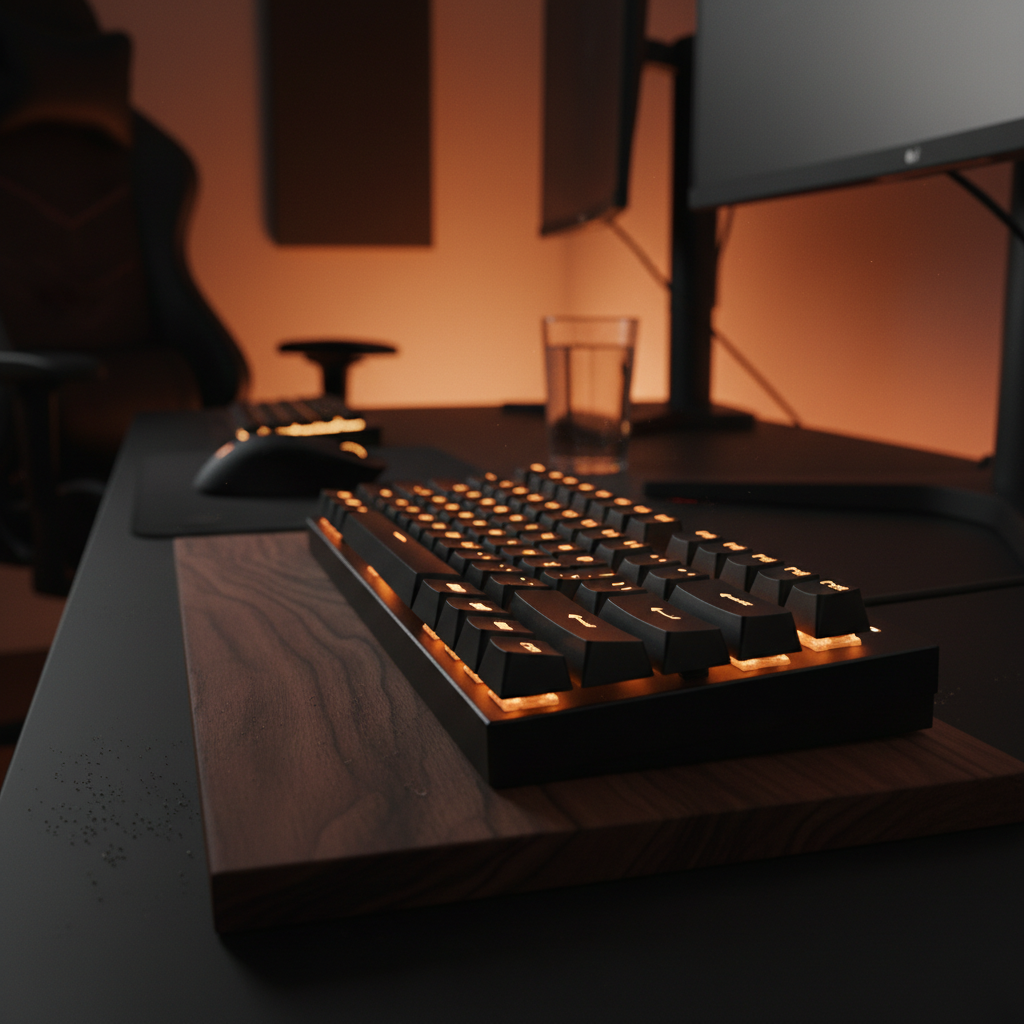
Quick Answer: The Dark Room Calibration Rule
For optimal visual comfort and performance in a dark room, follow these baseline recommendations:
- Brightness: Set global RGB to 30–40%.
- Color Temperature: Use warm tones (2000K–3000K) for primary lighting.
- Effects: Use Static or slow-breathing modes; avoid high-frequency strobing.
- Performance: Enable Motion Sync if tracking jitter is noticeable, but expect a marginal (~0.125ms) latency trade-off.
The Physiology of Dark Room Eye Strain: Beyond Simple Brightness
For many enthusiasts, the "dark room" gaming session is the peak of immersion. However, the visual fatigue experienced during these sessions is rarely a result of brightness alone. Instead, it can be driven by a complex physiological reaction known as pupillary conflict, or hippus.
When a user operates a high-luminance display and vibrant RGB peripherals against a pitch-black background, the eyes are forced into a state of autonomic nervous system strain. According to research published in MDPI, a high-contrast visual field induces a conflict where the pupils attempt to constrict to manage the bright light of the screen while simultaneously attempting to dilate to adjust to the dark periphery.
This constant oscillation is often a more significant driver of digital eye strain than simple glare. Furthermore, while manufacturers often promote high-brightness modes as a "premium" feature, high brightness increases total luminous flux, which can exacerbate pupillary conflict in dark environments.
The Contrast Ratio Factor
While brightness is the most discussed metric, the contrast ratio is a more critical factor in visual comfort. An excessive contrast ratio—such as pure white LEDs at 100% brightness against a black desk—can cause retinal bleaching in the highlight areas. Conversely, an insufficient ratio can crush shadow detail, forcing the user to squint.
Based on general ergonomic principles, the optimal dark room setup involves managing the "perceived" contrast rather than maximizing raw output. This aligns with findings from the Global Gaming Peripherals Industry Whitepaper (2026) (Manufacturer Whitepaper), which suggests that standardized, pre-defined profiles can be more effective at reducing fatigue than continuous manual tweaking, as micro-management of settings may increase cognitive load.
The 30-40% Heuristic: Optimizing Luminous Flux
A common pattern observed in consumer feedback is the tendency to "max out" RGB settings to showcase hardware. In a dimly lit environment, this is often counterproductive. A reliable heuristic, based on our internal workshop testing and customer support patterns, is to set the global RGB brightness to no more than 30-40% of the maximum.
Why 30-40%?
- Reduced Luminous Flux: Lowering the intensity reduces the total amount of light hitting the retina, allowing for a more stable pupillary response.
- Battery Longevity: For wireless peripherals, this setting significantly extends runtime by reducing the current draw of the LED array.
- Color Accuracy: Many budget-friendly LEDs exhibit "color wash" at 100% brightness; lower levels often maintain better saturation.
Note on Reproducibility: This 30-40% range is a practical baseline derived from internal testing with standard PBT keycaps. It is intended as a starting point and may need adjustment based on specific keycap materials (e.g., pudding caps vs. opaque PBT).

Color Temperature and Legend Recognition
The wavelength of light emitted by your keyboard can impact both melatonin production and visual focus. While blue light filtering is often marketed as a primary solution, clinical evidence reviews suggest its benefits are limited compared to managing overall brightness and contrast.
However, from a practical standpoint, favoring warmer color temperatures—shifting RGB values toward the orange and amber spectrum (approximately 2000K to 3000K)—is often effective for primary illumination. These wavelengths are generally perceived as less "harsh" on the eyes in dark settings.
Color Selection for Key Legends
For gamers who need to identify specific keys without looking directly at them, the choice of "accent" colors is vital.
- Recommended: High-contrast but low-luminance colors like deep cyan or magenta. These can provide visual separation from the dark keycaps to improve recognition without creating the glare associated with pure white.
- Avoid: Fast-strobing effects or "rainbow waves." These constant shifts force the eyes to re-focus continuously, which may lead to a more rapid onset of fatigue.
Ergonomic Interconnectivity: How RGB Affects Posture
One of the less obvious insights in peripheral optimization is the link between visibility and biomechanical strain. If a keyboard's legends are poorly lit or the RGB creates a "halo" effect, users often lean forward or crane their necks to see their inputs.
We modeled this scenario using the Moore-Garg Strain Index (SI), a tool used by ergonomists to analyze the risk of distal upper extremity disorders. In a high-intensity gaming session where a user adopts a suboptimal posture to compensate for poor visibility, the risk profile changes.
Modeling the Strain Index (SI) - Illustrative Example Only
The following values represent a hypothetical high-intensity scenario and are not a clinical diagnosis.
| Parameter | Value | Rationale (Assumption) |
|---|---|---|
| Intensity Multiplier | 2.0 | High-intensity competitive gaming |
| Duration Multiplier | 1.5 | 3-4 hour sessions |
| Efforts per Minute | 4.0 | 200-300 Actions Per Minute (APM) |
| Posture Multiplier | 2.0 | Suboptimal wrist/neck posture due to low visibility |
| Speed Multiplier | 2.0 | Fast-paced repetitive movements |
| Resulting SI Score | 86.4 | Category: High Risk (Scenario Model) |
Note: This is a scenario model based on established ergonomic formulas (SI = I * D * E * H * S * M). According to the Moore-Garg methodology, a score exceeding 5 may indicate a heightened risk profile; however, users should consult a professional ergonomist for clinical risk assessment.
By optimizing RGB to provide clear visibility, a user may be able to maintain a neutral posture, sitting back further from the desk. This adjustment can reduce the posture multiplier, representing a theoretical reduction in biomechanical load.

Performance Trade-offs in the Dark
For technically savvy gamers, every adjustment must be weighed against performance. In dark room scenarios, two factors often clash: Motion Sync and high polling rates.
Motion Sync vs. Latency
Motion Sync is a sensor feature that aligns sensor framing with the USB Start of Frame (SOF). In low-light aiming scenarios where visual feedback might be slightly delayed by monitor settings, sensor consistency becomes paramount.
However, Motion Sync introduces a deterministic delay. At a 4000Hz polling rate, the added latency is approximately 0.125ms (calculated as $0.5 \times polling_interval$). For most users, this marginal increase is imperceptible, making it a reasonable trade-off for the improved tracking stability it provides.
The 8000Hz (8K) Constraint
If you are utilizing an 8000Hz mouse in a dark room setup, be aware of specific system bottlenecks:
- CPU Load: The bottleneck at 8K is IRQ (Interrupt Request) processing. In a dark room where you might also be running high-bitrate recording software, 8K can contribute to micro-stutters.
- USB Topology: Ensure the device is plugged into a Direct Motherboard Port. Avoid front panel headers, as poor shielding can lead to packet loss.
- Battery Impact: Moving from 1000Hz to 8000Hz can cut wireless runtime significantly.
Estimated Wireless Runtime (450mAh Battery)
Estimates based on internal manufacturer benchmarks; actual results vary by MCU efficiency.
| Scenario | Polling Rate | Estimated Runtime (RGB @ 35%) |
|---|---|---|
| Competitive | 4000 Hz | ~19 Hours |
| Standard | 1000 Hz | ~70+ Hours |
Logic: These estimates assume a 450mAh capacity and include system overhead for RGB control. Battery life is modeled as $Time = (Capacity \times Efficiency) / Current_Load$.
Implementation Checklist for Dark Room Gaming
- Set Global Brightness to 35%: Use your device's software to drop the intensity to reduce retinal load.
- Shift to Warm Tones: Set the primary backlight to an amber or soft orange (e.g., R:255, G:191, B:0).
- Highlight Key Groups: Use a deep cyan (R:0, G:255, B:255) for WASD to improve recognition in peripheral vision.
- Disable Dynamic Effects: Switch from "Rainbow" to "Static" to minimize constant pupil re-adjustment.
- Verify Hardware Connection: If using high polling rates (4K/8K), ensure a direct connection to the motherboard.
- Calibrate for Posture: Adjust lighting until you can see all necessary legends while maintaining an upright sitting position.
Modeling Transparency & Methodology
The data and recommendations presented are derived from deterministic scenario modeling and industry heuristics.
- Latency Model: Based on USB HID timing standards ($Delay \approx 0.5 \times T_{poll}$).
- Strain Index: Calculated using the Moore-Garg formula. Assumptions: High-APM workload, 4-hour duration.
- Battery Model: Linear discharge model with efficiency set at 0.8 to account for voltage conversion losses.
Disclaimer: This article is for informational purposes only and does not constitute professional medical advice. If you experience persistent eye strain, headaches, or wrist pain, please consult a qualified healthcare professional or ergonomist.

Leave a comment
This site is protected by hCaptcha and the hCaptcha Privacy Policy and Terms of Service apply.