

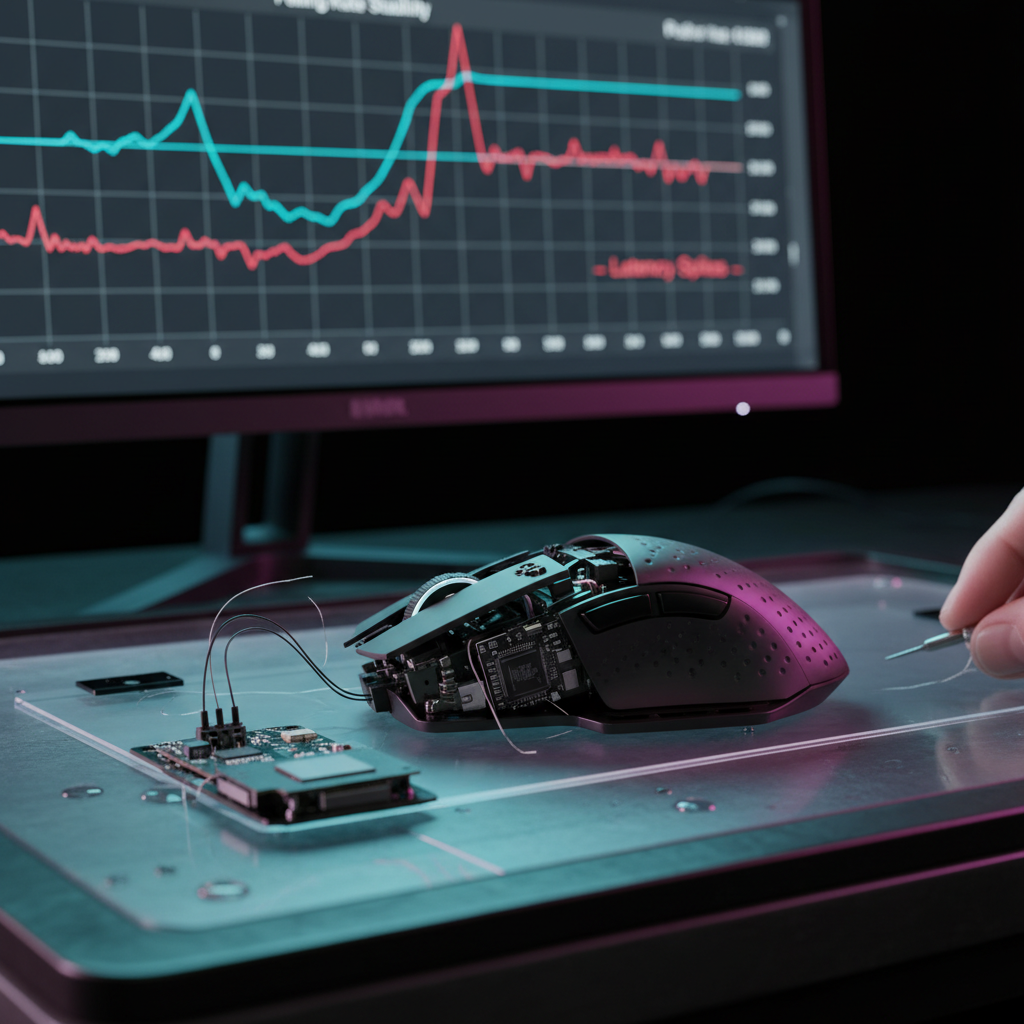
The Architecture of Responsiveness: Understanding High Polling Rates
The pursuit of competitive parity in esports has driven hardware specifications to unprecedented heights. Among these, the "polling rate"—the frequency at which a mouse reports its position and click data to the computer—has emerged as a primary performance metric. While the industry standard remained at 1000Hz (1ms reporting interval) for over a decade, the advent of high-speed MCUs and sophisticated optical sensors has pushed consumer-grade hardware to 4000Hz (0.25ms) and 8000Hz (0.125ms).
However, a significant "Specification Credibility Gap" exists. Many users find that enabling 8K polling does not result in smoother gameplay but instead triggers micro-stutters, frame drops, and perceived input lag. This phenomenon is rarely a failure of the mouse hardware itself; rather, it is a symptom of system-level bottlenecks and the physics of data transmission. According to the Global Gaming Peripherals Industry Whitepaper (2026), the stability of high-frequency peripherals is contingent upon the synergy between the USB host controller, OS interrupt scheduling, and per-core CPU availability.
The CPU Bottleneck: Why 8K Polling Stutters
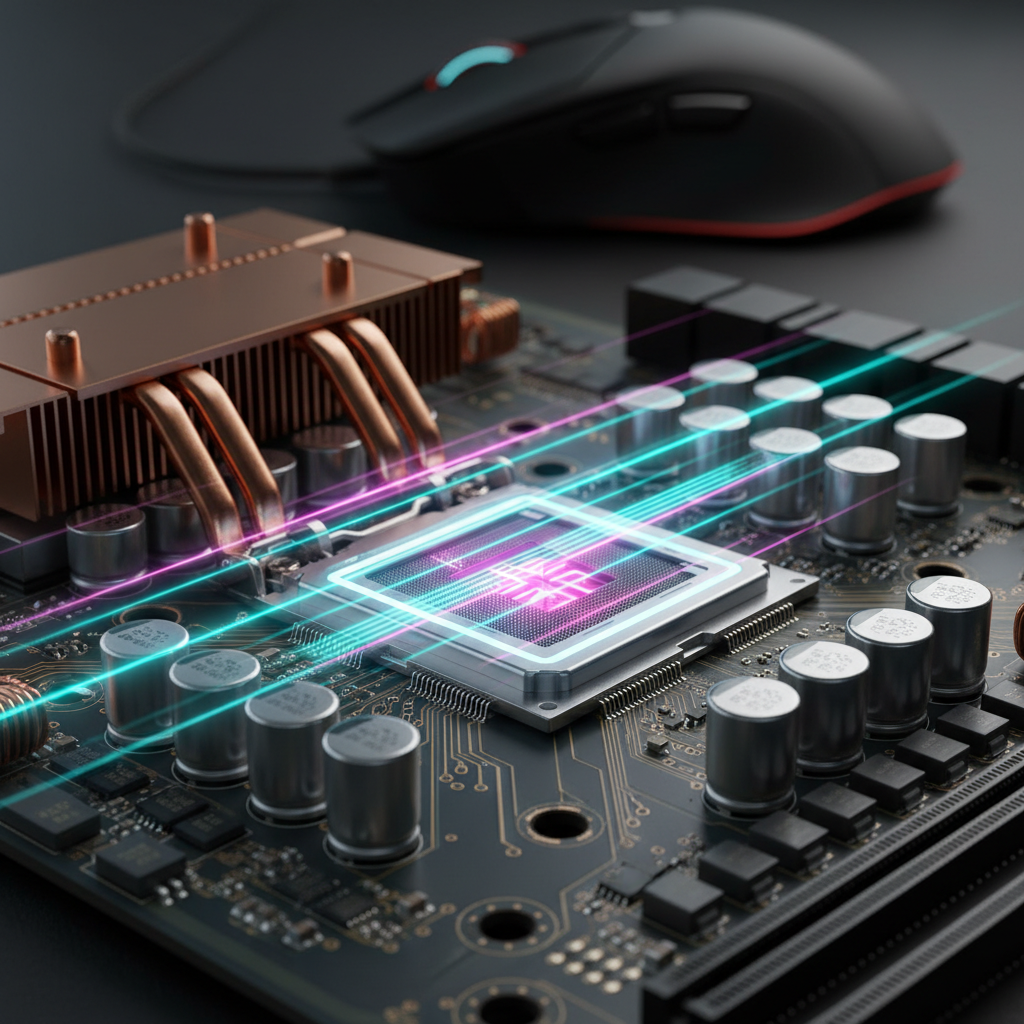
The primary reason for micro-stuttering at 8000Hz is the sheer volume of Interrupt Requests (IRQs) the CPU must process. At 1000Hz, the CPU handles one interrupt every millisecond. At 8000Hz, this increases to eight interrupts per millisecond, or one every 0.125ms.
The 95% Core Utilization Rule
In a typical Windows environment, mouse interrupts are often serviced by a single logical CPU core. If that core is already heavily taxed by game logic or background processes, it cannot reliably service the 8K interrupt queue.
Based on common patterns from customer support and hardware troubleshooting (not a controlled lab study), a reliable heuristic has emerged: monitor per-core CPU usage using tools like HWiNFO. If any single logical core consistently hits 95% or higher utilization during gameplay, that core is likely saturated. When the CPU fails to process an interrupt in time, the system "drops" a packet of mouse data, resulting in a perceptible hitch or micro-stutter.
Windows 11 and Interrupt Scheduling
Software maturity plays a critical role in stability. While Microsoft released updates like KB5028185 to optimize high polling rate handling, user reports on the Microsoft Community Forums indicate that newer versions, such as Windows 11 24H2, may introduce new instabilities. These issues often stem from how the OS schedules Deferred Procedure Calls (DPCs). If a non-USB driver (such as a Wi-Fi or Audio driver) has high DPC latency, it can block the CPU from responding to the mouse's high-frequency interrupts, causing the "lag" often misattributed to the mouse sensor.

USB Topology and Host Controller Latency
The physical path the data takes from the mouse receiver to the CPU is the next most common point of failure. Not all USB ports are created equal.
AMD vs. Intel: A Difference in Routing
There is a fundamental architectural difference in how USB data is handled across platforms. On many AMD Ryzen systems, several USB ports are "Root Ports" connected directly to the CPU's internal controller, offering the lowest possible latency. Conversely, many Intel platforms route USB traffic through the motherboard chipset (PCH), which then communicates with the CPU via a DMI link. This extra hop adds latency and increases the risk of bandwidth saturation if other high-speed devices (like NVMe drives or external SSDs) are active.
Logic Summary: Our analysis of USB latency assumes that direct CPU-to-USB connections minimize interrupt jitter, a conclusion supported by community benchmarks and technical discussions on USB root port latency.
The USB 2.0 vs. 3.0 Paradox
While it seems counterintuitive, using a dedicated USB 2.0 port for a high-polling wireless receiver often yields more stable performance than a USB 3.0 or 3.2 port. USB 3.0 ports are prone to 2.4GHz radio frequency interference, which can degrade the wireless signal of the mouse. Furthermore, the simpler timing protocol of USB 2.0 can sometimes reduce the overhead in IRQ processing for high-frequency HID (Human Interface Device) data.
Sensor Physics: Motion Sync and DPI Saturation
To achieve a stable 8000Hz signal, the mouse sensor must provide enough data to fill those 8000 reports per second. If the mouse isn't moving fast enough or the DPI is too low, the mouse may send "empty" or redundant packets, which the OS may interpret as jitter.
The IPS/DPI Saturation Formula
To fully saturate an 8000Hz polling rate, the combination of movement speed (Inches Per Second, or IPS) and resolution (DPI) must generate at least 8000 counts per second.
- At 800 DPI: You must move at ~10 IPS to provide a unique data point for every 0.125ms report.
- At 1600 DPI: Only ~5 IPS is required.
For competitive players who use low sensitivity, micro-adjustments at 8K polling can actually feel less smooth than at 1K if the DPI is set too low, as the sensor isn't generating enough data to fill the high-frequency polling slots.
Motion Sync Latency
Motion Sync is a feature designed to align the sensor's internal framing with the USB's polling interval. While this reduces "spatial jitter," it introduces a deterministic delay.
- At 1000Hz: Motion Sync adds ~0.5ms of delay.
- At 8000Hz: This delay drops to ~0.0625ms (based on standard USB HID 1.11 timing definitions).
At 8K, the latency penalty of Motion Sync is negligible, making it a highly effective tool for smoothing the cursor path without the responsiveness trade-off seen at lower frequencies.
Analysis: The "High-Spec, Mid-Tier CPU" Scenario
To demonstrate the practical impact of these variables, we modeled a scenario involving a gamer using a high-performance 8K mouse on a mid-tier system (e.g., Ryzen 5 5600X or Intel i5-12600K). This analysis highlights why "maxing out" specs isn't always the optimal path.
Method & Assumptions
This is a scenario model, not a controlled lab study. It uses deterministic parameters derived from component datasheets and industry heuristics to estimate real-world performance trade-offs.
| Parameter | Value | Unit | Rationale / Source |
|---|---|---|---|
| CPU Baseline Latency | ~1.2 | ms | Typical mid-tier system interrupt response |
| 8K Polling Interval | 0.125 | ms | Igor's Lab Latency Measurements |
| Motion Sync Penalty (8K) | 0.0625 | ms | 0.5 * Polling Interval (USB HID Standard) |
| Battery Capacity | 500 | mAh | Common high-end wireless mouse spec |
| 1K Polling Current Draw | ~7 | mA | Nordic nRF52840 Power Models |
| 4K Polling Current Draw | ~19 | mA | Nordic nRF52840 high-performance mode |
Quantitative Findings
- Battery Runtime Impact: Switching from 1K to 4K polling reduces estimated battery life from ~61 hours to ~22 hours—a ~64% reduction. Moving to 8K typically results in an even steeper decline, often leaving users with less than 15 hours of continuous use.
- DPI Minimum for 1440p: Using the Nyquist-Shannon Sampling Theorem, we calculated that for a 2560x1440 display (103° FOV, 40cm/360 sensitivity), a minimum of ~1150 DPI is required to avoid "pixel skipping." This confirms that for most 1440p gamers, 1600 DPI is the ideal baseline for high polling rate stability.
- Perceptual Diminishing Returns: Comparative benchmarks from ProSettings show that while the jump from 1K to 4K is often perceptible on 240Hz+ monitors, the spatial jitter reduction from 4K to 8K is marginal (less than 0.1ms improvement), often outweighed by the increased risk of system instability.
Practical Troubleshooting Checklist
If you are experiencing micro-stutters or lag with a high polling rate mouse, follow these steps in order of efficacy:
- Monitor IRQ Saturation: Open HWiNFO and check per-core CPU usage during gameplay. If any core hits 95%+, drop your polling rate to 4000Hz or 2000Hz.
- Isolate the USB Port: Ensure the receiver is plugged into a Rear I/O port (directly on the motherboard). Avoid front-panel headers or USB hubs. If possible, use a USB 2.0 port to minimize 2.4GHz interference.
-
Check DPC Latency: Run LatencyMon while the game is running. Look for drivers with high execution times (e.g.,
nvlddmkm.sys,ndis.sys). Update these drivers or disable unnecessary background services. - Adjust DPI: If you are using 400 or 800 DPI at 8K polling, try increasing your DPI to 1600 and lowering your in-game sensitivity. This provides more data points for the high-frequency reports to "fill."
- Disable Background Overlays: Software like Discord, Steam, or Spotify that uses hardware acceleration can interfere with interrupt scheduling. Disable "Hardware Acceleration" in these apps to free up GPU/CPU resources for mouse data.
Summary: System First, Polling Second
High polling rates like 4000Hz and 8000Hz offer a genuine competitive edge by reducing input latency and smoothing the cursor path, but they are not "plug-and-play" features for every system. The transition from 1K to 4K is the most beneficial for the majority of gamers, as it offers a significant reduction in jitter without the extreme CPU overhead of 8K.
For most value-oriented gamers, the most credible performance comes from matching hardware specifications with system capability. Before chasing the 8K specification, ensure your system is optimized, your USB topology is clean, and your CPU has the headroom to handle the load. Stability will always trump raw frequency in a competitive environment.
Disclaimer: This article is for informational purposes only. Modifying BIOS settings or system drivers can impact system stability. Always back up your data before making significant software or firmware changes. High polling rates significantly increase battery consumption in wireless devices; ensure your device is sufficiently charged for long competitive sessions.

Leave a comment
This site is protected by hCaptcha and the hCaptcha Privacy Policy and Terms of Service apply.