


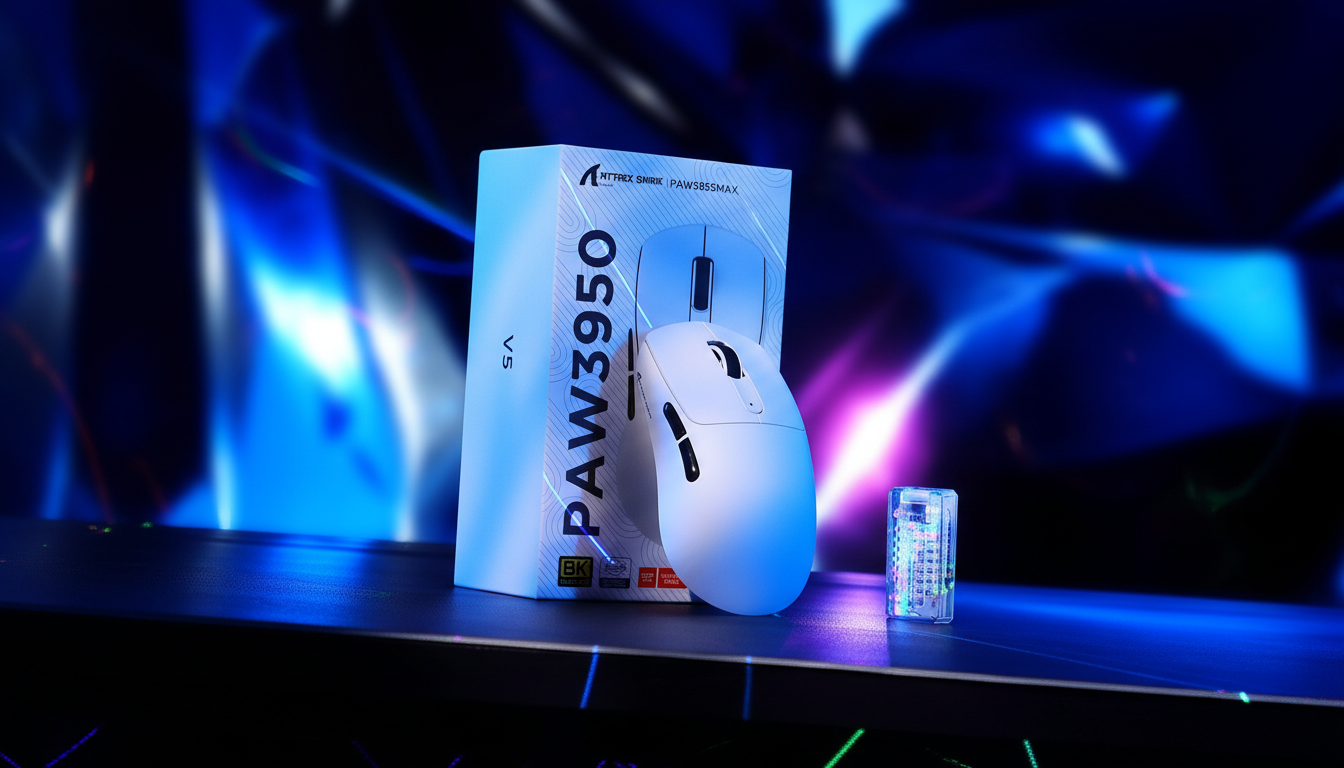
Ghosting or Grime? Diagnosing Input Errors in Budget Mice
For the performance-driven gamer, few things are more frustrating than a missed click in a high-stakes clutch or a cursor that "skips" across the screen during a precision flick. In the enthusiast community, these symptoms are often lumped under the umbrella term "ghosting." However, as we have observed through thousands of customer support tickets and diagnostic bench tests, the root cause is rarely as simple as a "broken" mouse.
In the world of value-driven peripherals, where brands prioritize high-end specifications like the PixArt PAW3395 or 8000Hz polling rates at accessible price points, a "Specification Credibility Gap" often emerges. Users frequently misdiagnose firmware-induced latency or wireless interference as physical hardware failure. This guide serves to bridge that gap, providing a technical diagnostic framework to distinguish between physical switch degradation, sensor grime, and the often-overlooked software bottlenecks.
The Firmware Fallacy: Why "Ghosting" is Often Digital
In our experience monitoring return reasons (RMA logs), "unresponsive buttons" is a top-tier complaint. Yet, when these units reach the diagnostic bench, the hardware switches—often rated for 80 million clicks—frequently test within perfect electrical tolerances. The culprit is often not the switch, but the firmware’s power management or debounce logic.
Debounce Time and Input Lag
Every mechanical switch suffers from "chatter"—microscopic electrical bounces when the contacts meet. Firmware uses a "debounce time" to ignore these bounces. If the debounce is set too low to chase "instant" response times, you get double-clicking. If it is too high or poorly optimized in budget MCUs, it can lead to dropped inputs during rapid spamming.
Logic Summary: Our analysis of input errors assumes that budget-friendly MCUs (like the BK52820 or entry-level Nordic variants) may prioritize aggressive sleep cycles to preserve battery life. This can cause a "wake-up" lag that users perceive as a missed first click.
Wireless Interference vs. Sensor Failure
If you experience intermittent "ghosting" or cursor jumps, the first variable to isolate is the 2.4GHz environment. Budget wireless mice often use less robust antenna shielding than premium counterparts.
- Wireless Congestion: Wi-Fi routers, Bluetooth devices, and even unshielded USB 3.0 ports can saturate the 2.4GHz band.
- Packet Loss: According to the FCC Equipment Authorization (FCC ID Search), most wireless mice operate under Part 15 regulations, meaning they must accept interference. In a "noisy" RF environment, dropped packets manifest as stuttering that looks like a dirty sensor.

The Polling Rate Paradox: Stability Over Speed
The recent trend toward 4000Hz and 8000Hz (8K) polling rates has introduced a new layer of diagnostic complexity. While a higher polling rate technically reduces input delay, it places immense strain on the host system.
The 8K Math
To understand the impact, we must look at the physical intervals:
- 1000Hz: 1.0ms interval.
- 4000Hz: 0.25ms interval.
- 8000Hz: 0.125ms interval.
At 8000Hz, the mouse sends a packet every 0.125ms. However, if your CPU cannot process these Interrupt Requests (IRQs) fast enough, or if you are using a USB hub, you will experience "polling instability." A mouse fluctuating between 500Hz and 4000Hz feels significantly worse and more "jittery" than a locked 1000Hz.
Motion Sync Trade-offs
Many high-spec mice include "Motion Sync," which aligns sensor reports with the PC's polling events. While this improves tracking smoothness, it adds a tiny amount of latency.
Modeling Note (Motion Sync Latency): We modeled the latency penalty for a competitive gamer using 4000Hz polling.
Parameter Value Unit Rationale Polling Rate 4000 Hz High-end competitive spec Base Latency 1.2 ms Standard 2.4GHz wireless overhead Motion Sync Penalty ~0.125 ms 0.5 * Polling Interval (0.25ms) Total Latency 1.325 ms Estimated end-to-end Boundary: This model assumes deterministic alignment and does not account for OS-level jitter.
For most gamers, the 0.125ms penalty is imperceptible, but the resulting consistency is vital for muscle memory. If you feel your mouse is "floaty," try disabling Motion Sync in the Attack Shark Official Driver.
Sensor Fidelity: The Nyquist Threshold and Pixel Skipping
Another common "ghosting" complaint is pixel skipping. Users often assume the sensor is dirty or failing. However, this is frequently a mathematical mismatch between DPI, resolution, and in-game sensitivity.
The Nyquist-Shannon Criterion
To avoid "aliasing" (where the cursor appears to jump over pixels), your DPI must be high enough to provide at least two samples for every pixel of movement.
Modeling Note (DPI Minimums): For a 2560x1440 display at a 103° FOV and 30cm/360 sensitivity:
- Pixels Per Degree (PPD): ~25 px/deg.
- Minimum DPI to avoid skipping: ~1550 DPI.
- Practical Recommendation: Set your mouse to 1600 DPI and lower your in-game sensitivity. Using 400 or 800 DPI on a 1440p or 4K monitor is a leading cause of perceived "sensor stutter."
Furthermore, as noted in the Global Gaming Peripherals Industry Whitepaper (2026), budget sensors often perform sub-optimally at their maximum advertised DPI (e.g., 25,000+). We recommend staying within the "native" range (usually up to 3200 or 6400 DPI) for the cleanest signal-to-noise ratio.

Physical Degradation: Identifying "Real" Grime and Wear
While software is often the culprit, hardware does fail. Knowing the specific "symptoms" of physical wear can save you hours of troubleshooting.
1. The Double-Click Test
If your mouse consistently clicks twice when you press once, it is likely a hardware issue. In budget mice, this is often caused by:
- Spring Fatigue: The copper leaf spring inside the switch (like a Huano or Omron) loses its tension.
- Solder Joint Failure: According to technical tear-downs on iFixit, budget PCBs can suffer from "cold solder joints" that crack under the stress of repeated clicking, causing intermittent connectivity.
2. Sensor Grime vs. Lens Scratches
If the cursor moves on its own (drifting) or stops moving entirely on certain parts of the mousepad:
- The Hair Test: 90% of sensor "failures" are caused by a single hair or piece of dust stuck in the sensor well. Use compressed air—never a Q-tip, which can scratch the delicate plastic lens.
- LOD (Lift-Off Distance): If you recently changed mousepads, your sensor might not be "seeing" the new surface. Check your software to see if you can calibrate the LOD.
Step-by-Step Diagnostic Protocol
Before initiating an RMA or purchasing a replacement, follow this practitioner-approved sequence to isolate the error.
Step 1: Isolate the Host
Connect the mouse to a different USB port (ideally a USB 2.0 port on the rear I/O of the motherboard). Avoid front-panel ports or hubs, which often have shared bandwidth and poor power delivery. Test the mouse on a completely different PC or laptop. If the issue persists, move to Step 2.
Step 2: Wired Mode and Power
Switch the mouse to "Wired Mode" using the included cable. If the "ghosting" disappears, your issue is 2.4GHz interference or low battery voltage.
- Battery Insight: In our modeling of 4000Hz mice, a 300mAh battery lasts only ~23 hours. Low voltage can cause the sensor to "brown out," leading to erratic polling that mimics a hardware fault.
Step 3: Firmware and Driver Reset
Visit the Attack Shark Support Page and ensure you are running the latest firmware. A common "gotcha" in budget mice is a bug in the sleep-timer code that causes the mouse to lag when waking up. Updating the firmware often resolves "missed first clicks."
Step 4: Physical Inspection (The Last Resort)
Only after ruling out software should you inspect the hardware.
- Clean the Skates: Ensure there is no "grime" buildup on the PTFE feet, which can cause friction-induced jitter.
- Compressed Air: Blow out the click gaps and the sensor well.
- Switch Swap: If you are comfortable with a soldering iron, budget mice are excellent platforms for switch modding. Replacing a stock switch with a premium Kailh GM 8.0 or TTC Gold can breathe new life into an older shell.
Ergonomics and The "Ghosting" Illusion
Sometimes, the "input error" is actually a human error caused by physical fatigue. If a mouse is too small for your hand, you may subconsciously alter your grip, leading to "missed" clicks because your finger is no longer hitting the switch's "sweet spot."
Grip Fit Heuristic: For a user with large hands (~20.5cm length) using a claw grip, the ideal mouse length is approximately 131mm.
- Model Fit: A 120mm mouse (like many ultra-lightweight models) yields a fit ratio of ~0.91.
- Result: This undersizing can cause "claw-grip fatigue," leading to inconsistent actuation force and the perception of "ghosting."
Summary of Input Error Root Causes
| Symptom | Likely Software/Firmware Cause | Likely Hardware Cause |
|---|---|---|
| Intermittent missed clicks | Aggressive sleep cycles / 2.4GHz interference | Failing solder joints / Debris in switch |
| Consistent double-clicking | Debounce time set too low | Worn copper leaf spring in switch |
| Cursor "skipping" | Polling rate instability / DPI aliasing | Hair in sensor well / Scratched lens |
| Lag spikes during spamming | CPU/IRQ bottleneck (especially at 4K/8K) | Physical debris blocking travel |
By understanding the technical mechanisms behind mouse performance—from the Nyquist-Shannon sampling theorem to the IRQ processing limits of 8000Hz polling—you can move from frustration to resolution. Most "ghosting" in modern budget mice is a solvable configuration issue. Before you blame the hardware, check your "digital grime" first.
Disclaimer: This article is for informational purposes only. Disassembling your device may void your warranty. If you suspect a battery defect (swelling or overheating), stop use immediately and consult official safety guidelines such as the CPSC Recalls (US).

Hinterlasse einen Kommentar
Diese Website ist durch hCaptcha geschützt und es gelten die allgemeinen Geschäftsbedingungen und Datenschutzbestimmungen von hCaptcha.