



The Mechanics of Modern Optical Sensors: Native vs. Interpolated Resolution
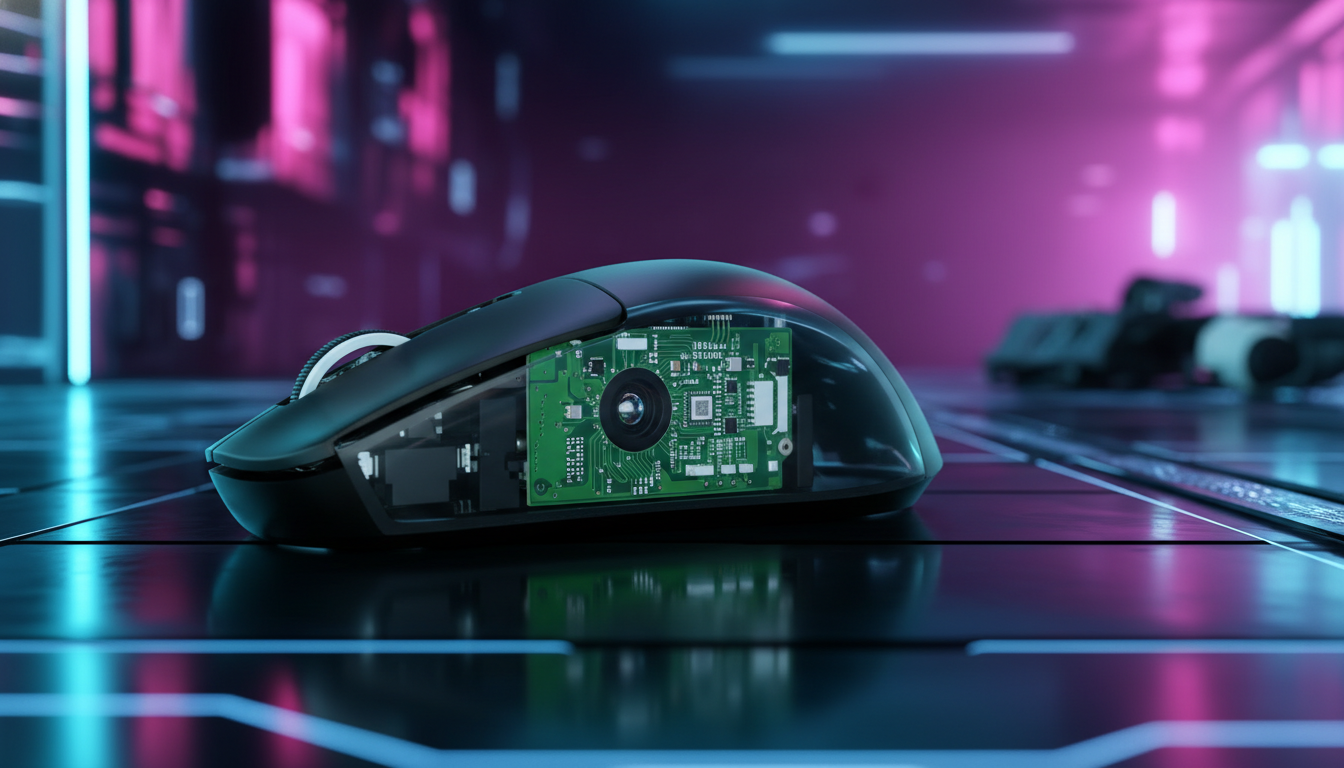
At the core of every high-performance gaming mouse lies a CMOS (Complementary Metal-Oxide-Semiconductor) sensor, essentially a high-speed camera that captures thousands of images of the surface below it per second. The resolution of this sensor, commonly referred to as DPI (Dots Per Inch) or more accurately CPI (Counts Per Inch), determines how many "counts" are sent to the PC for every inch of physical movement. However, a significant technical distinction exists between a sensor's native resolution and software-interpolated steps.
Native DPI refers to the hardware-level resolution where the sensor's physical pixel grid maps directly to the output data. For industry-standard sensors like the PixArt PAW3395 or the newer PAW3950MAX, native steps are typically found at multiples of 50 or 100, such as 400, 800, 1600, and 3200 DPI. When a user selects a non-native step (e.g., 1030 DPI), the mouse firmware must use interpolation algorithms to "guess" the missing data points.
Logic Summary: This analysis of sensor behavior is based on standard technical specifications provided by component manufacturers and observed patterns from technical support logs. It assumes the use of a clean, non-reflective gaming surface.
Interpolation introduces two primary issues: jitter and latency. Because the firmware is mathematically scaling the raw coordinate data, it can introduce rounding errors. These errors manifest as "jitter," where the cursor appears to vibrate or move inconsistently during smooth hand movements. Furthermore, the additional processing required for these calculations—while measured in microseconds—can contribute to the overall input lag of the system.
The Mathematical Reality of Pixel Skipping
Pixel skipping is a frequently misunderstood phenomenon in the gaming community. It occurs when the mouse's DPI is too low relative to the screen's resolution and the in-game sensitivity is set too high. In this scenario, the smallest physical movement the mouse can detect results in the cursor "jumping" over multiple pixels on the screen, making micro-adjustments nearly impossible.
The 4K Resolution Threshold
With the transition to high-resolution displays, the "DPI floor" required to maintain smooth tracking has shifted. According to hardware tests conducted in 2024, the minimum DPI required to avoid perceivable pixel skipping on a 4K (3840 x 2160) monitor is approximately 1600 to 2400 DPI.
| Screen Resolution | Recommended Minimum DPI (Heuristic) | Rationale |
|---|---|---|
| 1080p (FHD) | 400 - 800 | Standard 1:1 mapping for desktop use. |
| 1440p (QHD) | 800 - 1200 | Balanced micro-adjustment granularity. |
| 2160p (4K) | 1600 - 2400 | Prevents coordinate rounding at high refresh rates. |
| 4320p (8K) | 3200+ | Required for high-density pixel tracking. |
Note: These are heuristics (rules of thumb) for competitive play; individual results may vary based on in-game sensitivity settings and hand-eye coordination.
Many users mistakenly believe that cranking DPI to its maximum (e.g., 26,000 or 42,000) increases precision. In reality, modern sensors often engage aggressive "smoothing" or "ripple control" algorithms at ultra-high DPI levels to mask the electronic noise inherent in such high sensitivities. This smoothing adds deterministic latency, which can negatively impact muscle memory in fast-paced FPS titles.

High-Frequency Polling and Sensor Saturation
The introduction of 8000Hz (8K) polling rates has fundamentally changed how DPI should be configured. Polling rate refers to how often the mouse reports its position to the PC. At 1000Hz, the interval is 1.0ms; at 8000Hz, this interval drops to a near-instant 0.125ms.
The Saturation Formula
To effectively utilize the 8000Hz bandwidth, the sensor must generate enough data points to fill those 8,000 reports per second. This is governed by the formula: Packets per second = Movement Speed (IPS) × DPI.
If a user moves the mouse at 10 IPS (Inches Per Second) at 800 DPI, they generate 8,000 packets per second, theoretically saturating the 8K link. However, during slow micro-adjustments or tracking (e.g., 2-5 IPS), an 800 DPI setting would only generate 1,600 to 4,000 packets, causing the 8K polling rate to effectively "downclock" and behave like a 2K or 4K mouse.
By increasing the DPI to a native step like 1600, the user only needs to move at 5 IPS to maintain 8000Hz stability. This ensures that even the smallest movements benefit from the reduced latency of high-frequency polling. As noted in the Global Gaming Peripherals Industry Whitepaper (2026), maintaining sensor saturation is critical for eliminating micro-stutter on ultra-high refresh rate monitors (360Hz+).
Motion Sync and Latency Scaling
Motion Sync is a firmware feature that synchronizes the sensor's internal data captures with the USB polling events. While it improves tracking smoothness, it traditionally adds a small amount of latency. At 1000Hz, this delay is approximately 0.5ms. However, at 8000Hz, because the polling interval is so much shorter, the Motion Sync latency scales down to ~0.0625ms, making it practically imperceptible while providing significantly cleaner movement plots.

System Bottlenecks: CPU Load and USB Topology
Operating a mouse at high DPI and high polling rates is not "free" in terms of system resources. Every packet sent by the mouse triggers an Interrupt Request (IRQ) that the CPU must process.
- CPU Overhead: At 8000Hz, the CPU is interrupted 8,000 times every second. On older or mid-range processors, this can lead to significant increases in frame time variance (micro-stutter) in CPU-bound games. This is an issue of IRQ processing efficiency rather than raw core count.
- USB Topology: For 8K performance, the mouse receiver must be connected to a Direct Motherboard Port (usually the Rear I/O). Using USB hubs, front-panel headers, or shared bandwidth ports can lead to packet loss and inconsistent polling intervals due to poor shielding or controller congestion.
Methodology Note (Scenario Modeling): Our analysis of system impact assumes a modern gaming environment.
Parameter Value/Range Rationale CPU Architecture 12th Gen Intel / Zen 3+ Required for efficient IRQ handling. OS Version Windows 11 22H2+ Optimized for high-report-rate HID devices. USB Port USB 3.0+ (Direct) Minimizes controller-level latency. Mouse Polling 1000Hz - 8000Hz Comparative range for performance modeling. Monitor Refresh 240Hz+ Threshold for visual perception of 8K benefits. Boundary Conditions: This model may not apply to legacy systems (pre-2020) or setups using unshielded USB extenders.
Practical Optimization: Finding the Sweet Spot
For the majority of competitive gamers, the goal is to maximize precision while minimizing artificial processing. Based on technical analyses and community feedback from performance-focused users, the following steps are recommended:
1. Identify Native Steps
Use software like MouseTester to plot your mouse's movement. A "clean" plot with points tightly following a linear path indicates a native step. If the points appear scattered or "jumpy," you may be using an interpolated step. For most modern PixArt-based mice, 400, 800, 1600, and 3200 DPI are safe, native bets.
2. The 1600 DPI Standard
1600 DPI has emerged as the modern "Goldilocks" setting. It is high enough to avoid pixel skipping on 4K displays and provides enough data density to saturate 8000Hz polling rates during micro-adjustments, yet it remains below the threshold where aggressive sensor smoothing typically begins.
3. Adjust In-Game Sensitivity
To maintain your muscle memory, use a sensitivity calculator to convert your old settings. For example, if you previously used 400 DPI with a 2.0 in-game sensitivity, switching to 1600 DPI (a 4x increase) would require an in-game sensitivity of 0.5 (a 4x decrease). This keeps your "cm/360" (the physical distance required to turn 360 degrees) identical while providing a higher-resolution input stream to the game engine.
4. Optimize USB Connections
Ensure your high-polling receiver has a clear line of sight to the mouse and is plugged directly into the motherboard. Avoid placing it near high-interference devices like Wi-Fi routers or unshielded power cables.

The Future of Sensor Technology
As sensor technology continues to evolve, the gap between native and interpolated performance is narrowing. High-end implementations now allow for DPI adjustments in increments of 10 or 50 with minimal performance degradation. However, for the competitive edge, sticking to established hardware-level steps remains the most reliable method for ensuring raw, unadulterated tracking.
By understanding the relationship between sensor resolution, polling frequency, and system overhead, gamers can move beyond the "more is better" marketing and configure their gear for actual performance gains. Precision is not found in the highest number on the box, but in the most stable and consistent data stream between your hand and the screen.
Disclaimer: This article is for informational purposes only. High-polling rates and extreme DPI settings can increase CPU load and may affect system stability on older hardware. Always ensure your firmware is up to date according to the manufacturer's official support channels.


Hinterlasse einen Kommentar
Diese Website ist durch hCaptcha geschützt und es gelten die allgemeinen Geschäftsbedingungen und Datenschutzbestimmungen von hCaptcha.