


Dank der rohen Leistung der M-Serie Apple Silicon Chips können Macs jetzt anspruchsvolle Spiele mit hohen Bildraten ausführen. Der Wechsel von der Arbeit zum Spielen erfordert jedoch die richtige Hardware. Standard-PC-Gaming-Peripheriegeräte passen oft nicht zum minimalistischen Design von Apple und bieten häufig keine Softwareunterstützung für macOS. Dieser Leitfaden erklärt genau, wie Sie die besten Peripheriegeräte für Ihren Mac auswählen. Durch die Wahl kompatibler Eingabegeräte, die Optimierung Ihrer drahtlosen Verbindungen und die korrekte Konfiguration Ihrer Software können Sie ein nahtloses Desktop-Setup für professionelle Produktivität und leistungsstarkes Gaming erstellen.

1. Wählen Sie eine mechanische Mac-Tastatur
Das Herzstück jedes Desktop-Gaming-Setups ist die Tastatur. Die Wahl eines Geräts, das speziell für das Apple-Ökosystem entwickelt wurde, verhindert Unterbrechungen im Arbeitsablauf und verbessert Ihr tägliches Tipp-Erlebnis.
Das native Layout ist wichtig
Standard-Windows-Tastaturen platzieren die Alt- und Windows-Tasten dort, wo Mac-Nutzer die Command- und Option-Tasten erwarten. Dies führt bei schnellem Arbeiten oder Spielen zu physischen Muskelgedächtnisfehlern. Der Kauf einer dedizierten mechanischen Mac-Tastatur stellt sicher, dass Sie von Anfang an das korrekte physische Layout erhalten. Sie müssen sich nicht auf Softwarelösungen verlassen, um Ihr Betriebssystem effizient zu bedienen.
Tastenkappen beachten
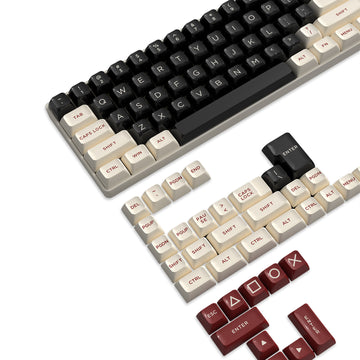
Beim Auswählen einer Tastatur sollten Sie die obere Reihe der Tastenkappen prüfen. Eine richtige Mac-zentrierte Tastatur verfügt über die korrekten Mediensteuerungssymbole wie Bildschirmhelligkeit, Lautstärke und Mission Control. So können Sie Ihre Systemhardware direkt von der Tastatur aus steuern, ohne das macOS Kontrollzentrum öffnen zu müssen.
Wahl der Schalter
Die physischen Schalter unter den Tastenkappen bestimmen Ihre Gaming-Leistung. Lineare Schalter (oft rot gekennzeichnet) bieten sanfte, schnelle Tastenanschläge, ideal für schnelle Spiele. Wenn Sie Ihren Mac hauptsächlich zum Programmieren oder Schreiben verwenden, bieten taktile Schalter (oft braun) ein physisches Feedback ohne laute Klickgeräusche, was sie perfekt für gemeinsame Büroumgebungen macht.
2. Bluetooth vs. 2,4 GHz für Mac-Nutzer
Mac-Nutzer bevorzugen traditionell kabellose Setups, um ihren Schreibtisch sauber zu halten. Das Verständnis der technischen Unterschiede zwischen drahtlosen Protokollen ist jedoch entscheidend für die Gaming-Leistung.
Der Bluetooth-Standard
Bluetooth ist die Standardverbindungsmethode für Apple-Geräte. Die Verwendung einer Bluetooth-mechanischen Tastatur hält Ihren Schreibtisch frei von Kabeln und erfordert keinen externen Empfänger, der an die USB-C-Anschlüsse Ihres Macs angeschlossen wird. Dies ist sehr praktisch für tägliche Büroaufgaben und gelegentliches Einzelspieler-Gaming.
Die Latenzrealität
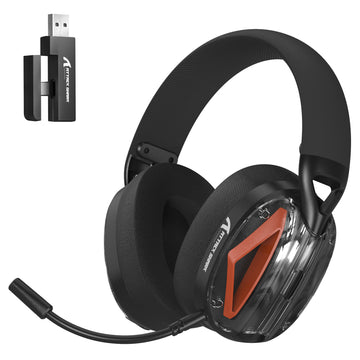
Trotz seiner Bequemlichkeit führt die Standard-Bluetooth-Technologie zu Eingabeverzögerungen. In kompetitiven Mehrspieler-Spielen verursacht diese geringe Latenz spürbare Verzögerungen zwischen dem Drücken einer Taste und der Aktion auf dem Bildschirm. Für schnelle Spiele sollten Sie Peripheriegeräte verwenden, die einen dedizierten 2,4-GHz-USB-Dongle enthalten, der eine zuverlässige Reaktionszeit von 1 Millisekunde bietet, identisch mit einer kabelgebundenen Verbindung.
Apples Bluetooth-Optimierung
Apple hat die internen Bluetooth-Empfänger in den neuesten Mac-Modellen kontinuierlich verbessert. Für Gelegenheitsspieler ist diese optimierte Bluetooth-Verbindung stabil genug. Die beste Lösung ist jedoch, Peripheriegeräte mit „Tri-Mode“-Konnektivität zu kaufen. Sie können Bluetooth für das tägliche Surfen verwenden und zum 2,4-GHz-Dongle wechseln, wenn Sie ein kompetitives Spiel starten.

3. Das Argument für eine weiße kabellose Maus
Apple-Arbeitsplätze sind bekannt für ihr schlankes, silbernes und minimalistisches Design. Sperrige, schwarze Kunststoff-Gaming-Peripheriegeräte stören oft diese visuelle Konsistenz.
Visuelle Harmonie
Eine saubere Schreibtischumgebung verbessert die Konzentration. Die Wahl einer weißen kabellosen Maus bewahrt die minimalistische Apple-Ästhetik und bietet gleichzeitig erstklassige Gaming-Leistung. Sie fügt sich nahtlos in Aluminium-MacBooks, Studio Displays und helle Schreibtischunterlagen ein und sorgt dafür, dass Ihr Setup bei Videokonferenzen professionell und beim Spielen stilvoll aussieht.
Mehr als die Magic Mouse
Die standardmäßige Apple Magic Mouse ist hervorragend für Touch-Gesten, versagt jedoch komplett als Gaming-Gerät. Ihr flaches ergonomisches Profil verursacht bei langen Sitzungen Handkrämpfe, und ihr Design mit nur einer Oberfläche verhindert, dass Sie linke und rechte Maustaste gleichzeitig klicken können. Sie müssen sie durch eine dedizierte Gaming-Maus ersetzen, um moderne Spiele effektiv zu spielen.
Technische Spezifikationen für Mac
Beim Kauf einer Mac-kompatiblen Gaming-Maus sollten Sie auf einen fehlerfreien optischen Sensor und eine Abtastrate von mindestens 1000 Hz achten. Stellen Sie sicher, dass programmierbare Seitentasten vorhanden sind. Ein hoher DPI-Bereich (Dots Per Inch) ist ebenfalls wichtig, um große 4K- oder 5K-Retina-Displays schnell zu navigieren, ohne die Maus ständig anheben zu müssen.
RGB-Tastatur-Software auf macOS
Die größte Herausforderung für Mac-Gamer ist die Kompatibilität der Peripheriesoftware. Viele große Gaming-Marken entwickeln ihre Anpassungs-Apps noch immer ausschließlich für Windows.
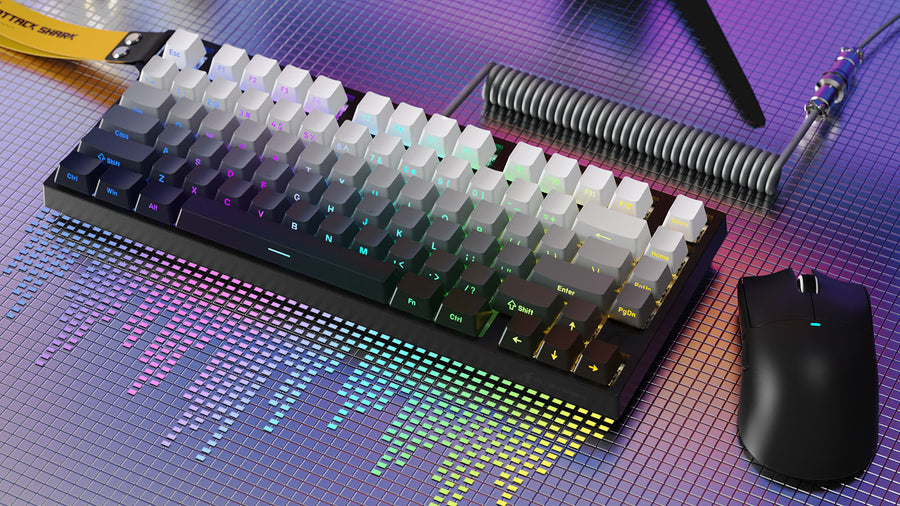
Überprüfen Sie vor dem Kauf, ob der Hersteller native RGB-Tastatur-Software für macOS anbietet. Ohne diese Software können Sie die Beleuchtungsfarben nicht ändern, bestimmte Tasten nicht neu belegen oder die Firmware des Geräts nicht aktualisieren. Wenn eine Marke Mac nicht unterstützt, suchen Sie nach Geräten mit Onboard-Speicher. Sie können die Tastatur einmal an einen Windows-PC anschließen, die PC-Software verwenden, um Ihre benutzerdefinierte Beleuchtung und Makros direkt im internen Speicher der Tastatur zu speichern, und sie dann wieder an Ihren Mac anschließen. Alternativ können Sie Open-Source-macOS-Anwendungen ausprobieren, die es ermöglichen, generische RGB-Beleuchtung ohne proprietäre Software zu steuern.
4. Mac-Shortcuts auf Gaming-Equipment legen
High-End-Gaming-Peripheriegeräte verfügen über zusätzliche Tasten. Das Belegen dieser Eingaben mit macOS-Funktionen überbrückt die Lücke zwischen Gaming und professioneller Produktivität.
Verwenden Sie Ihre Maussoftware, um Mac-spezifische Aufgaben auf Ihre zusätzlichen Maustasten zu legen. Das Belegen der Seitentasten mit „Mission Control“ oder „Schreibtisch anzeigen“ ermöglicht es Ihnen, sofort zwischen offenen Anwendungen zu wechseln, ohne das Trackpad zu benutzen.
Wenn Sie versehentlich ein Gerät mit Windows-Layout gekauft haben oder Ihre mechanische Mac-Tastatur weiter anpassen möchten, verwenden Sie die nativen macOS Systemeinstellungen. Navigieren Sie zum Bereich Tastatur und wählen Sie „Modifier Keys“ (Modifikatortasten). Hier können Sie physisch tauschen, wie das Betriebssystem die Command-, Option- und Control-Tasten liest, um Ihre genauen Tipppräferenzen zu erfüllen.
macOS verfügt über einen nativen Spielmodus, der automatisch CPU- und GPU-Leistung priorisiert und gleichzeitig Hintergrundaufgaben reduziert. Sie können eine bestimmte Makrotaste auf Ihrer Tastatur belegen, um schwere Hintergrundanwendungen (wie Videoeditoren oder große Browser) sofort zu schließen, damit der Spielmodus mit maximalen Systemressourcen läuft.
5. Richten Sie Ihr Mac-Gaming-Zentrum ein
Moderne Macs setzen vollständig auf USB-C-Anschlüsse. Die Organisation Ihrer Verbindungen stellt sicher, dass Ihre Gaming-Hardware ohne Unterbrechungen funktioniert.
USB-C-Ökosystem
Da die meisten 2,4-GHz-Gaming-Dongles noch ältere USB-A-Anschlüsse verwenden, benötigen Sie einen hochwertigen Thunderbolt- oder USB-C-Hub. Schließen Sie Ihre Dongles direkt an den Hub an, anstatt billige Einzeladapter zu verwenden. Positionieren Sie den Hub fern von externen Festplatten, um Störungen des Funksignals zu vermeiden.
Strommanagement
Gaming-Mäuse verbrauchen aufgrund ihrer hohen Abtastraten schnell Batteriestrom. Halten Sie ein geflochtenes USB-C-Kabel in der Nähe Ihres Mauspads bereit. So können Sie Ihre weiße kabellose Maus während des Spiels schnell anschließen und aufladen, ohne die Sitzung zu unterbrechen oder nach einer Steckdose suchen zu müssen.
Reisebereite Ausrüstung
MacBooks sind sehr portable Gaming-Maschinen. Eine kompakte Bluetooth-mechanische Tastatur ermöglicht es Ihnen, in Cafés oder Hotels zu spielen, ohne zusätzliche Dongles oder Kabel mitzunehmen. Suchen Sie nach einem 75%- oder 65%-Layout, das problemlos in Ihre Standard-Laptoptasche passt.
FAQ
Funktionieren alle Gaming-Tastaturen auf einem Mac?
Ja, die grundlegenden Tippfunktionen jeder USB- oder Bluetooth-Tastatur funktionieren automatisch auf einem Mac. Die proprietäre RGB-Tastatur-Software, die zum Ändern der Beleuchtungsfarben oder Programmieren von Makros erforderlich ist, funktioniert jedoch oft nur unter Windows. Prüfen Sie vor dem Kauf immer die macOS-Softwarekompatibilität.
Kann ich die Apple Magic Mouse zum Spielen verwenden?
Nein, das wird dringend nicht empfohlen. Die Magic Mouse erlaubt keine gleichzeitigen Linksklicks und Rechtsklicks, was in fast allen modernen First-Person-Shootern und Rollenspielen eine zwingende Mechanik ist.
Ist Bluetooth schnell genug für Gaming auf einem Mac?
Für langsame Strategiespiele oder gelegentliche Einzelspieler-Titel ist Bluetooth völlig ausreichend. Für kompetitive, schnelle Spiele wie Shooter verursacht die Bluetooth-Latenz jedoch eine spürbare Verzögerung. Für kompetitives Gaming sollten Sie immer einen 2,4-GHz-USB-Dongle oder eine kabelgebundene Verbindung verwenden.